> ## Documentation Index
> Fetch the complete documentation index at: https://relivai-63.mintlify.site/llms.txt
> Use this file to discover all available pages before exploring further.
# Environment Variables
> Save frequently used text as environment variables.
***
You can designate frequently used text as environment variables and use them by calling them into your tests.
Unlike [Variables](/guide/write/variable), environment variables are shared across the entire project.
They are suitable for values (such as URLs, account IDs, etc.) that need to vary according to the test execution environment (local/dev/prod, etc.).
## 1. Setting Environment Variables
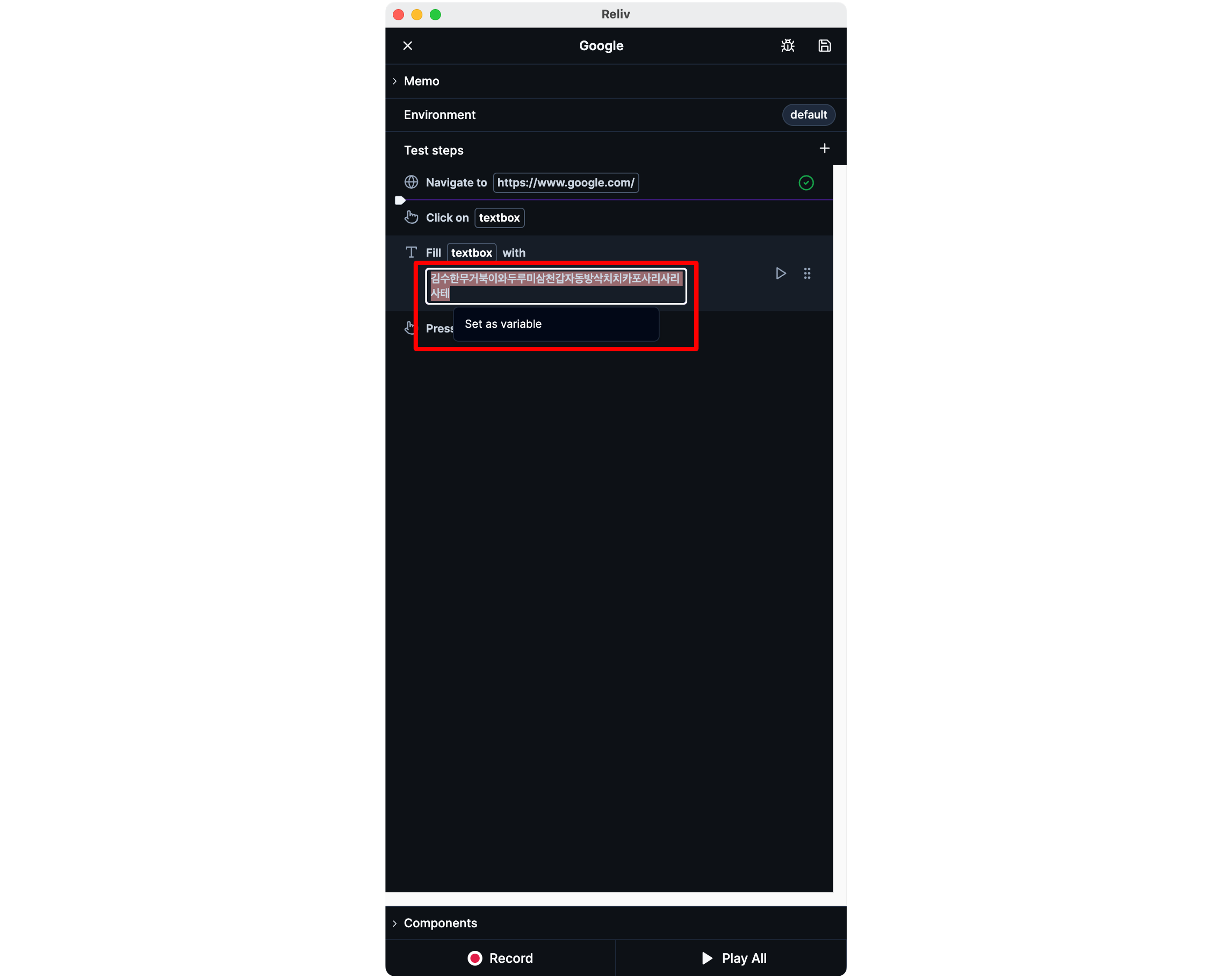
In the text input field, drag to select the part you wish to set as an environment variable.
Click the **\[Set as Variable]** button, and you can set it as an environment variable through the setting popup.
Environment variable names can only use uppercase and lowercase letters,
numbers, underscores (\_), and dashes (-).
 ## 2. Using Environment Variables
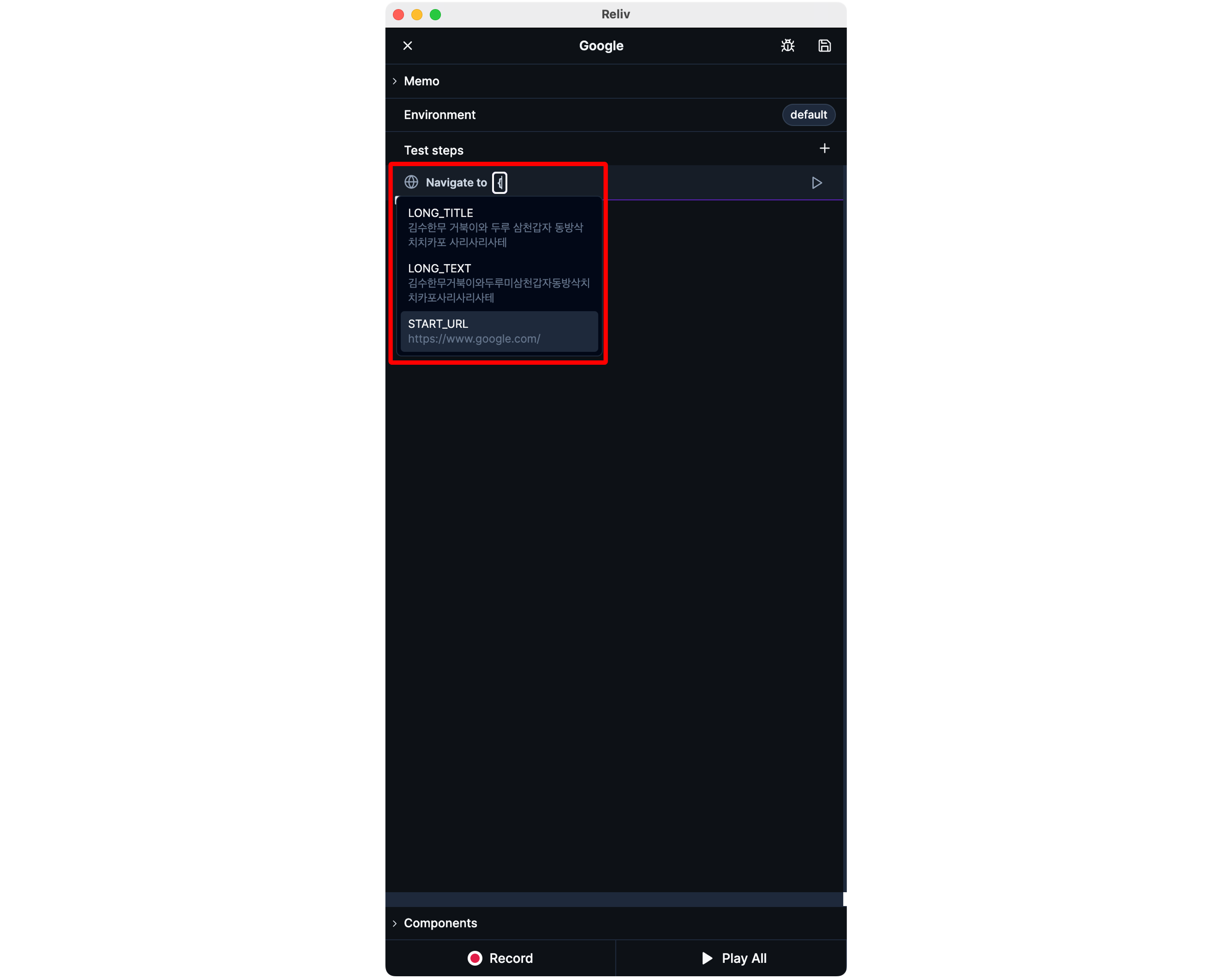
When you type `{` (curly braces) in a text input field, a list of environment variables will appear.
You can click to insert an environment variable.
You can search by typing part of the environment variable name.
## 2. Using Environment Variables
When you type `{` (curly braces) in a text input field, a list of environment variables will appear.
You can click to insert an environment variable.
You can search by typing part of the environment variable name.
 ## 3. Editing Environment Variables
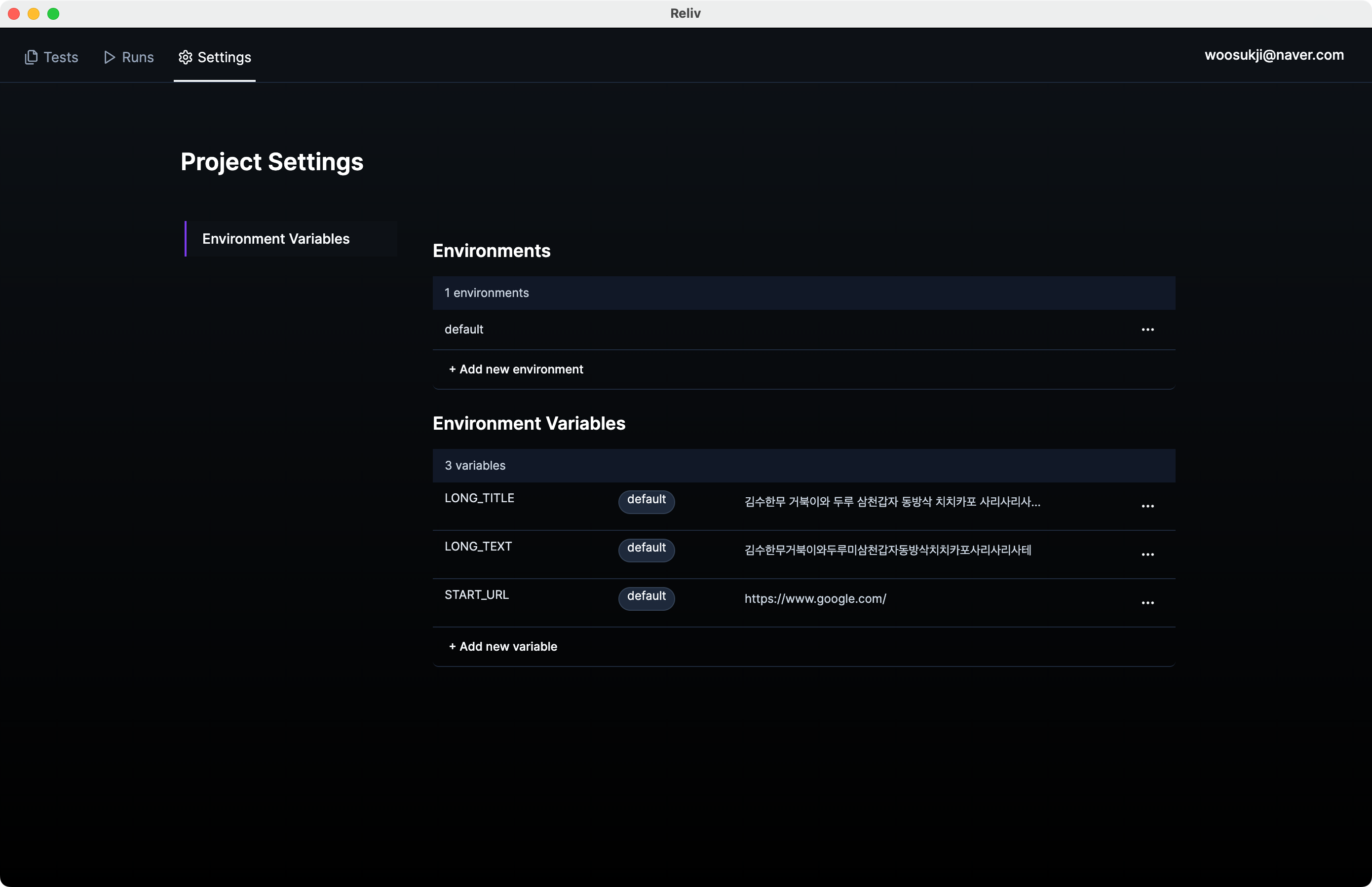
Select the **\[Settings]** tab at the top of the project screen to go to the project settings page.
In the **\[Environment Variables]** tab, you can manage your environment variables.
By clicking the **\[Add new environment]** button, you can add a new
environment.
## 3. Editing Environment Variables
Select the **\[Settings]** tab at the top of the project screen to go to the project settings page.
In the **\[Environment Variables]** tab, you can manage your environment variables.
By clicking the **\[Add new environment]** button, you can add a new
environment.
Set environment variables to match different execution environments (such as local,
dev, prod, etc.).