> ## Documentation Index
> Fetch the complete documentation index at: https://relivai-63.mintlify.site/llms.txt
> Use this file to discover all available pages before exploring further.
# Creating Tests
> We'll show you how to create a test.
***
## \[Project Page Description]
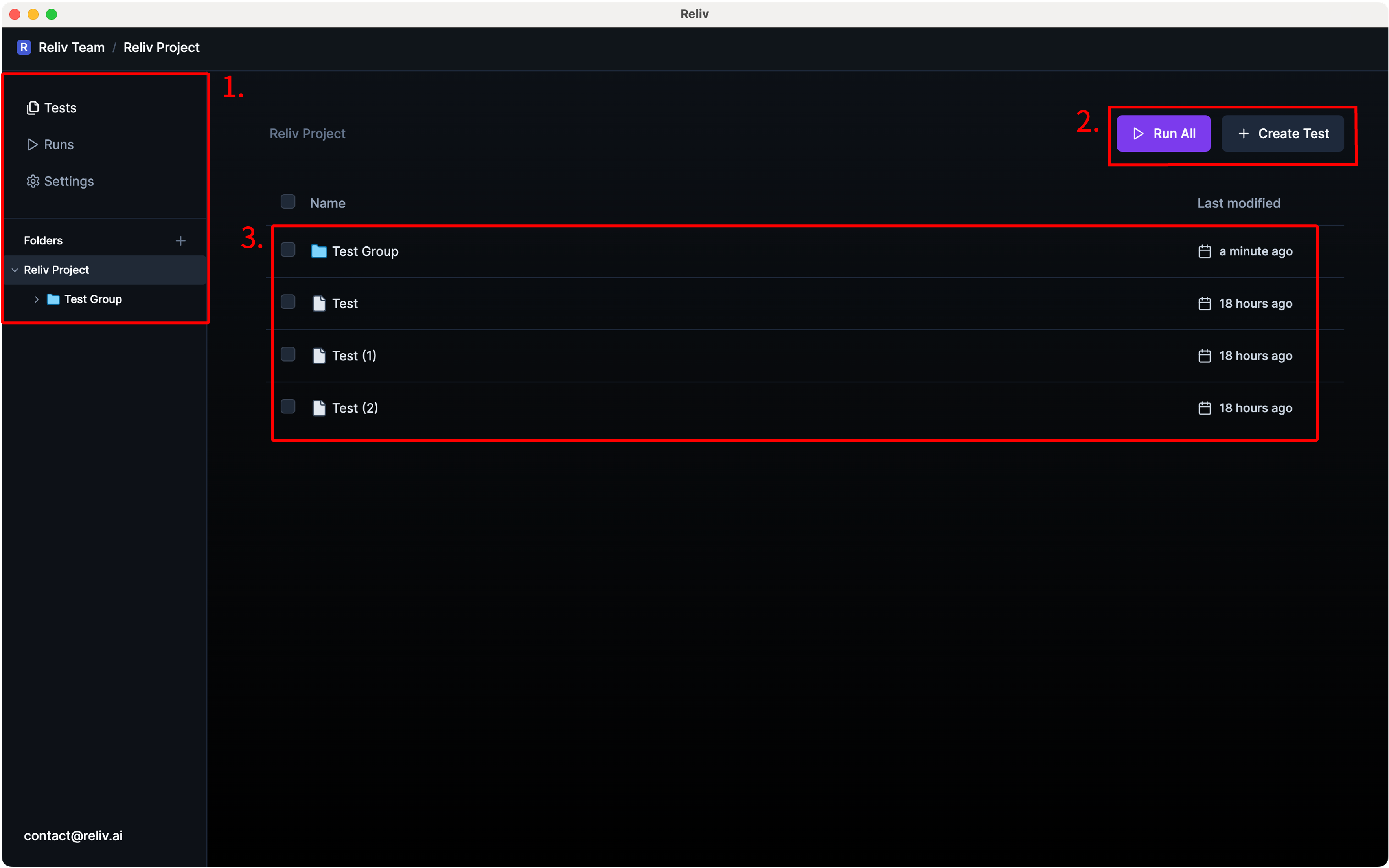 1. Navigation bar & Folder explorer
2. Create and execute tests.
3. List of created tests and folders.
## 1. Creating a Test
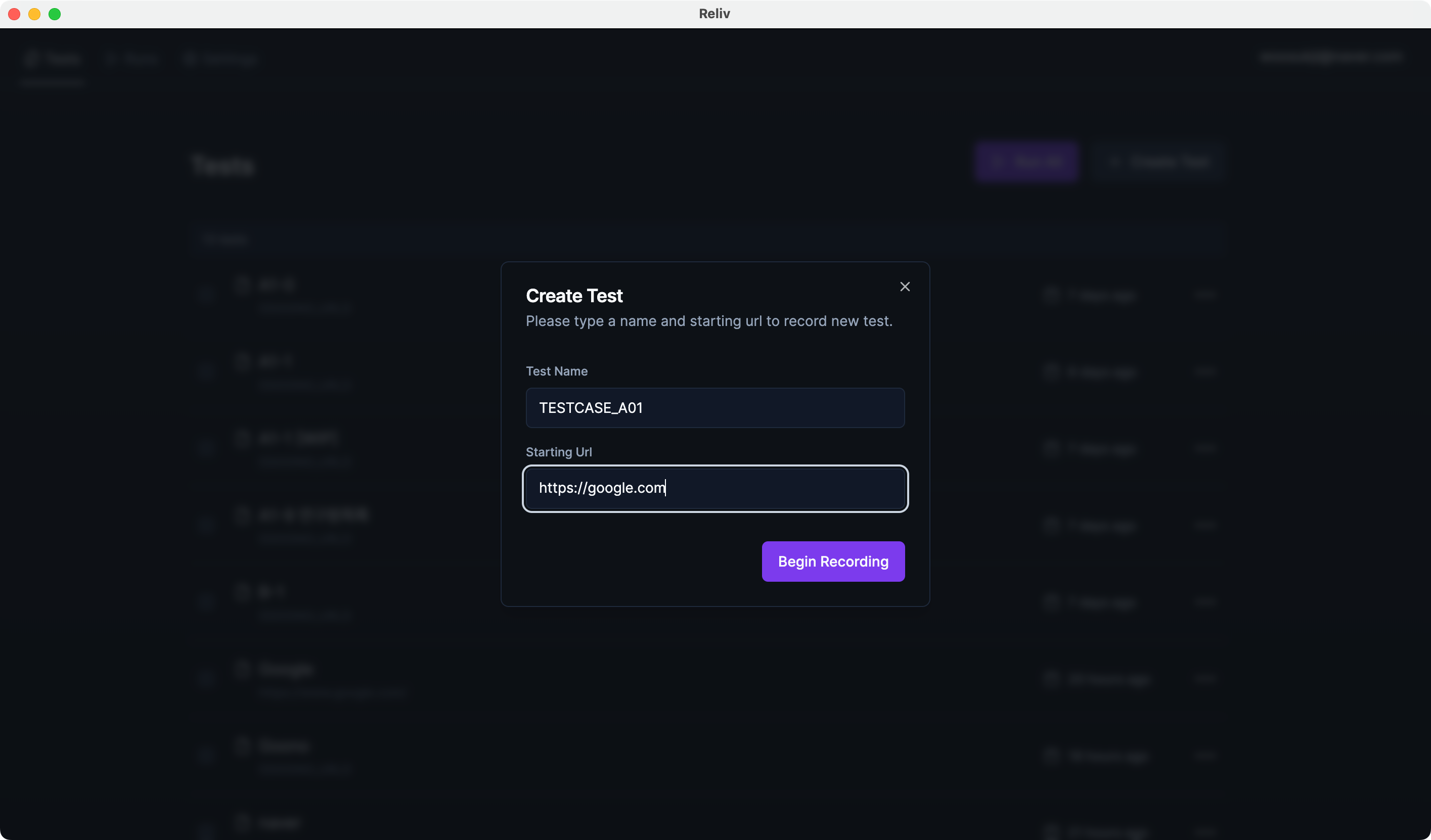
By clicking the upper right **\[Create Test]** button and entering the test name and start URL, you can create a test.
If it's a frequently used URL, drag the text and then click the **\[Set as Variable]** button to save it as an [environment variable](/guide/write/env-variable).
1. Navigation bar & Folder explorer
2. Create and execute tests.
3. List of created tests and folders.
## 1. Creating a Test
By clicking the upper right **\[Create Test]** button and entering the test name and start URL, you can create a test.
If it's a frequently used URL, drag the text and then click the **\[Set as Variable]** button to save it as an [environment variable](/guide/write/env-variable).
After saving the variable, you can reuse it by entering `{`(curly brace) in the input field.
 ## 2. Managing Tests
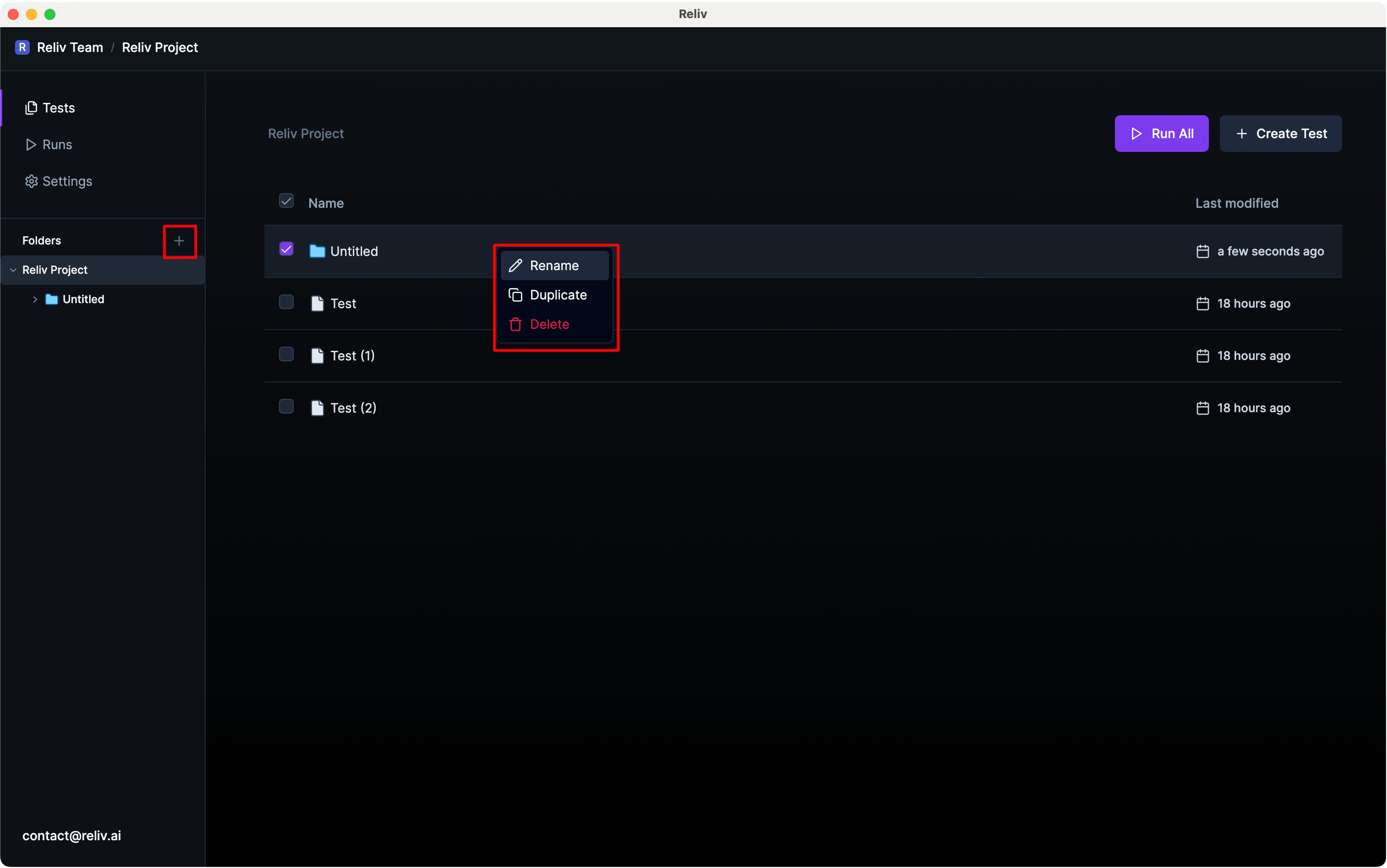
You can create a folder by clicking the **\[+]** button in the left folder explorer.
You can rename the folder by right-clicking on it and selecting the **\[Rename]** menu.
You can Drag and drop files and folders to move between folders.
## 2. Managing Tests
You can create a folder by clicking the **\[+]** button in the left folder explorer.
You can rename the folder by right-clicking on it and selecting the **\[Rename]** menu.
You can Drag and drop files and folders to move between folders.