> ## Documentation Index
> Fetch the complete documentation index at: https://relivai-63.mintlify.site/llms.txt
> Use this file to discover all available pages before exploring further.
# Running Tests
> We'll show you how to run a test.
***
## 1. Running a Test
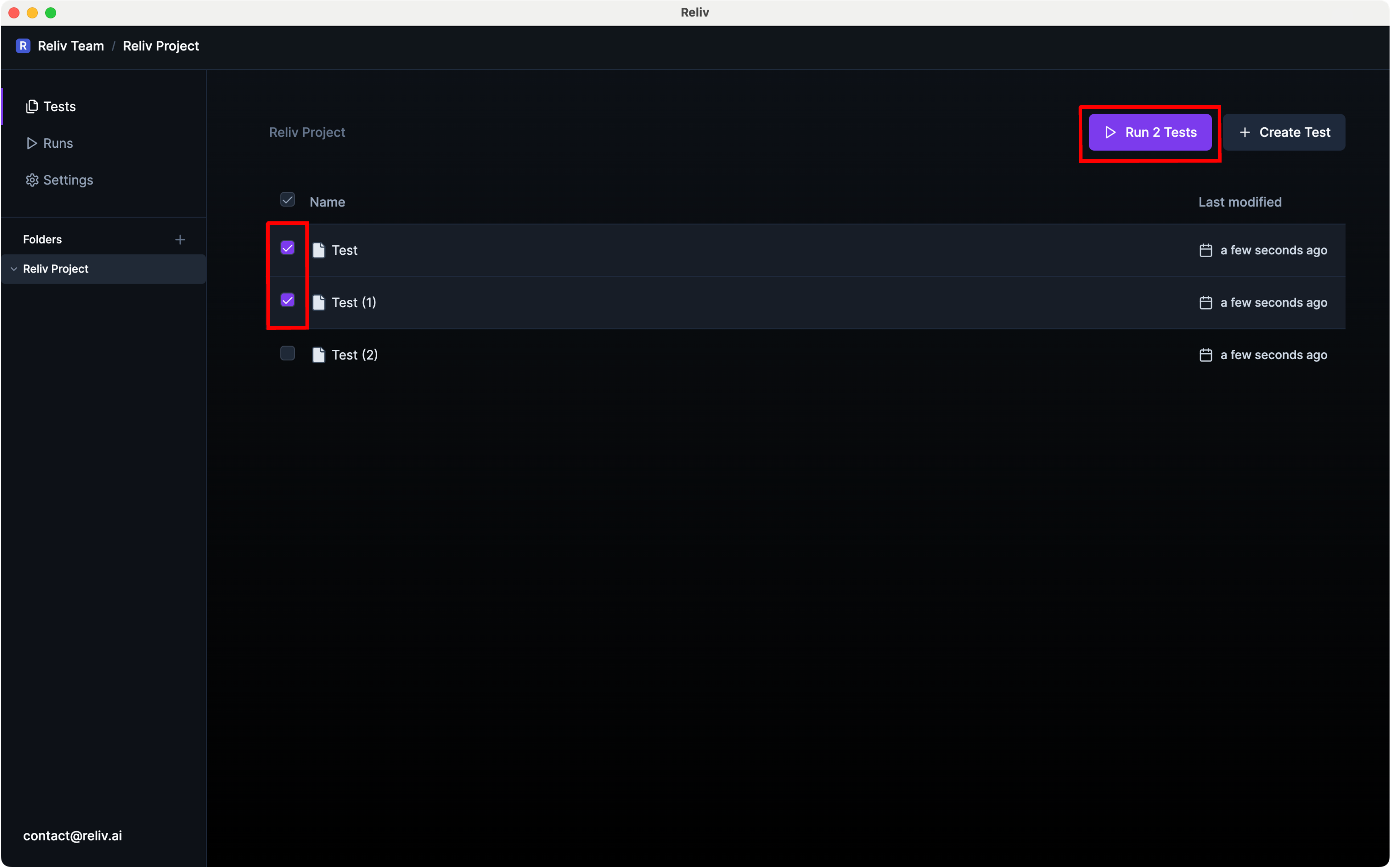
From the **\[Project Screen]**, select the tests you want to run and click the **\[Run Test]** button at the top.
If run without selecting any test, all tests in the project will be executed.
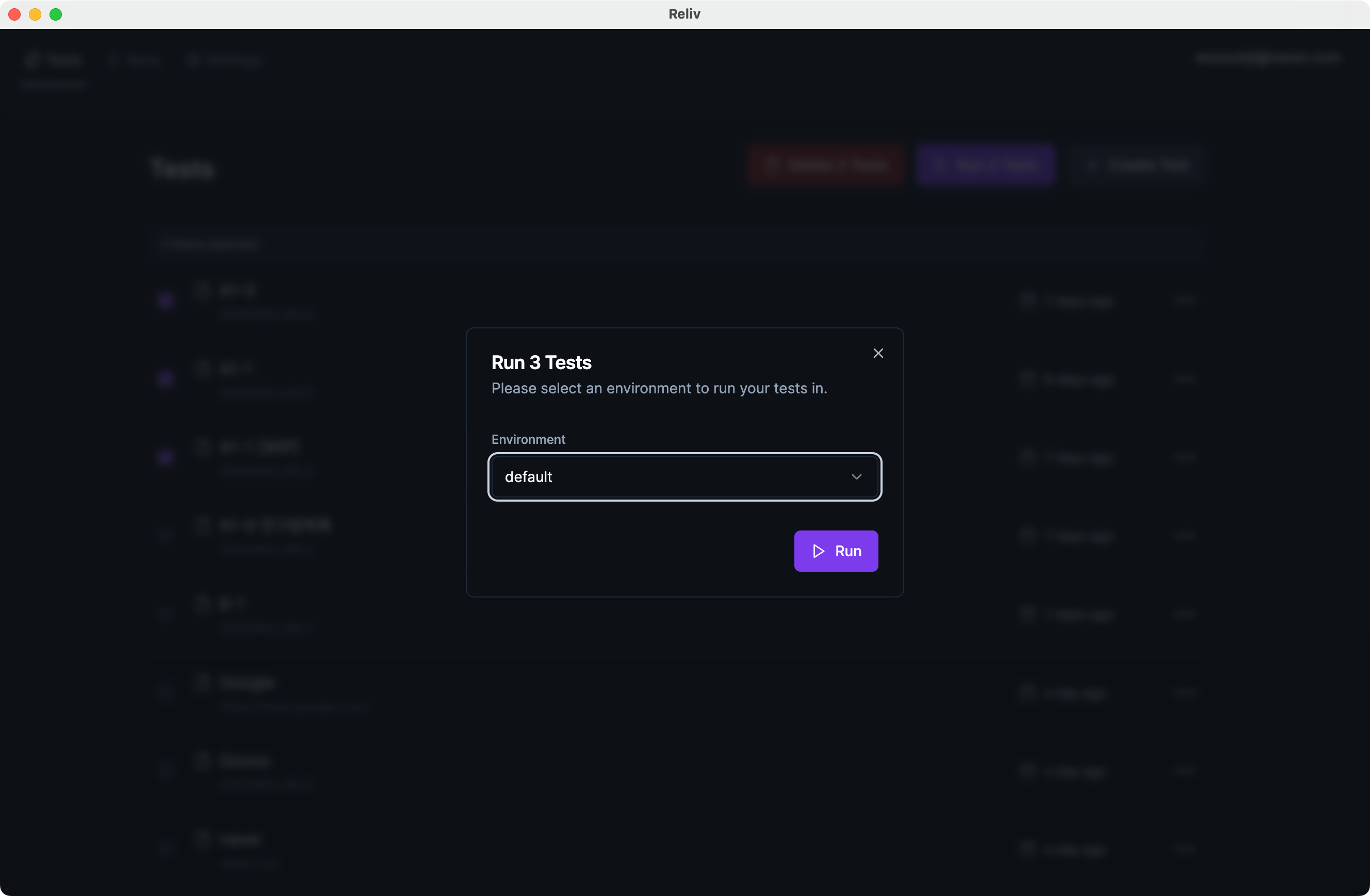
 Select the [environment](/guide/write/env-variable#3) to be used for running the test.
 ## 2. Checking Test Run Results
Select the **\[Runs]** tab from the top navigation bar.
Choose the desired result from the list of test run results.
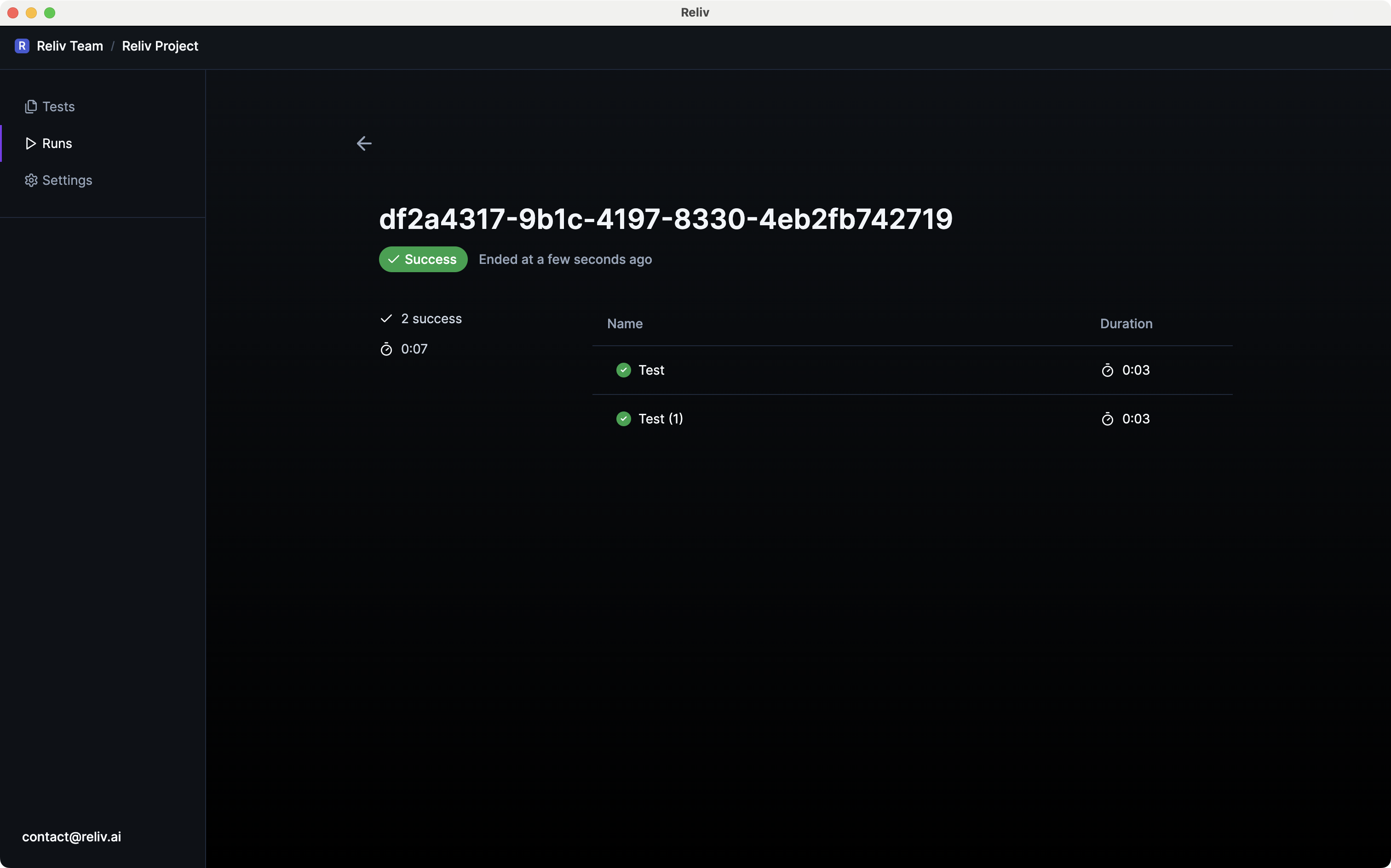
On the test run results page, you can see the results of each test included in that run.
## 2. Checking Test Run Results
Select the **\[Runs]** tab from the top navigation bar.
Choose the desired result from the list of test run results.
On the test run results page, you can see the results of each test included in that run.
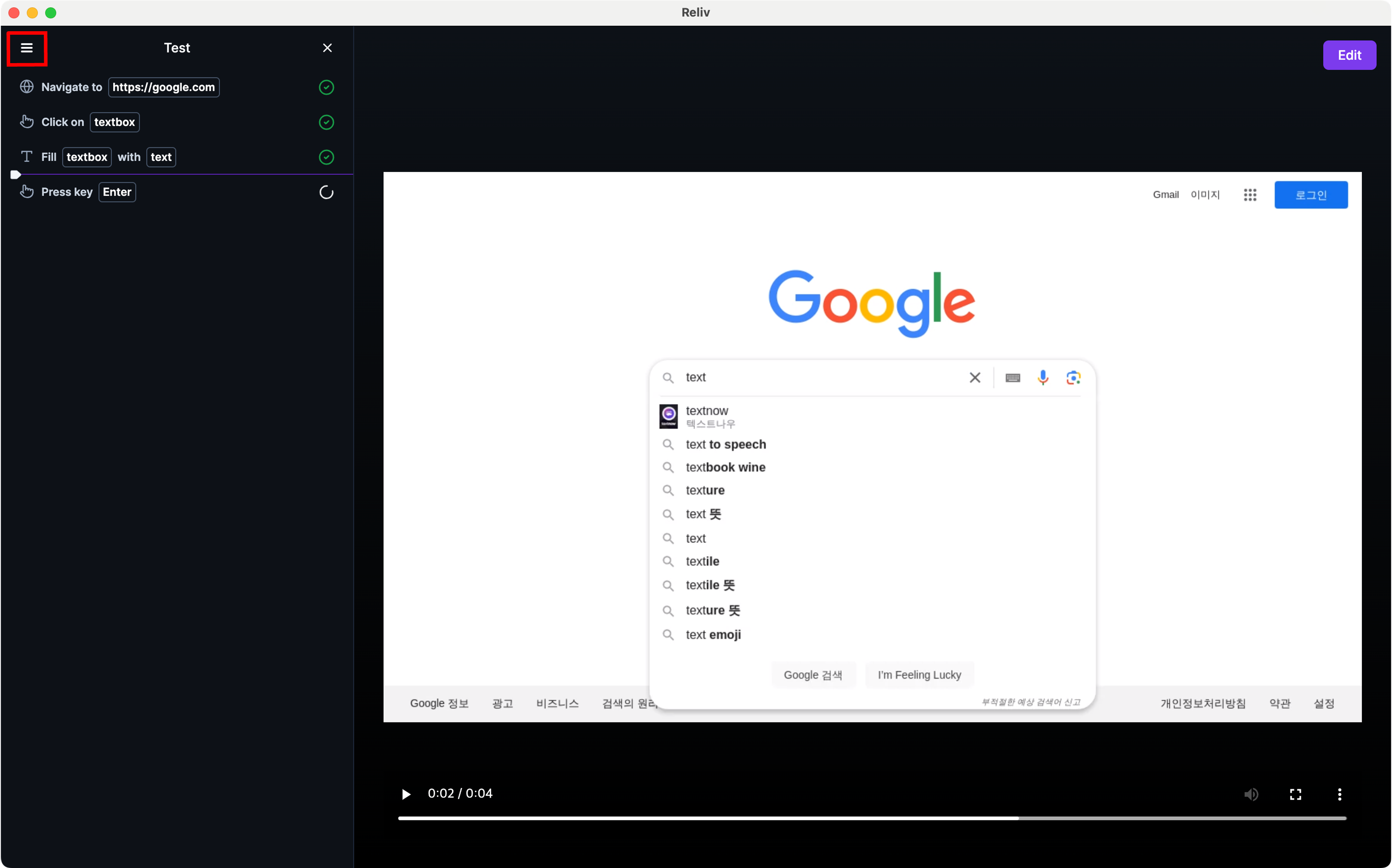
 By clicking on each test, you can check the action log for that test.
Click the hamburger button at the top left of the screen to select results by test folder.
Test results can be viewed as video recordings, and you can click on each action on the left to see the screen at that moment.
By clicking on each test, you can check the action log for that test.
Click the hamburger button at the top left of the screen to select results by test folder.
Test results can be viewed as video recordings, and you can click on each action on the left to see the screen at that moment.