> ## Documentation Index
> Fetch the complete documentation index at: https://relivai-63.mintlify.site/llms.txt
> Use this file to discover all available pages before exploring further.
# Action Blocks
> You can add frequently used actions all at once.
***
You can save a series of actions that are repeatedly used in test scenarios as an action block and add them all at once.
## 1. Creating Action Blocks
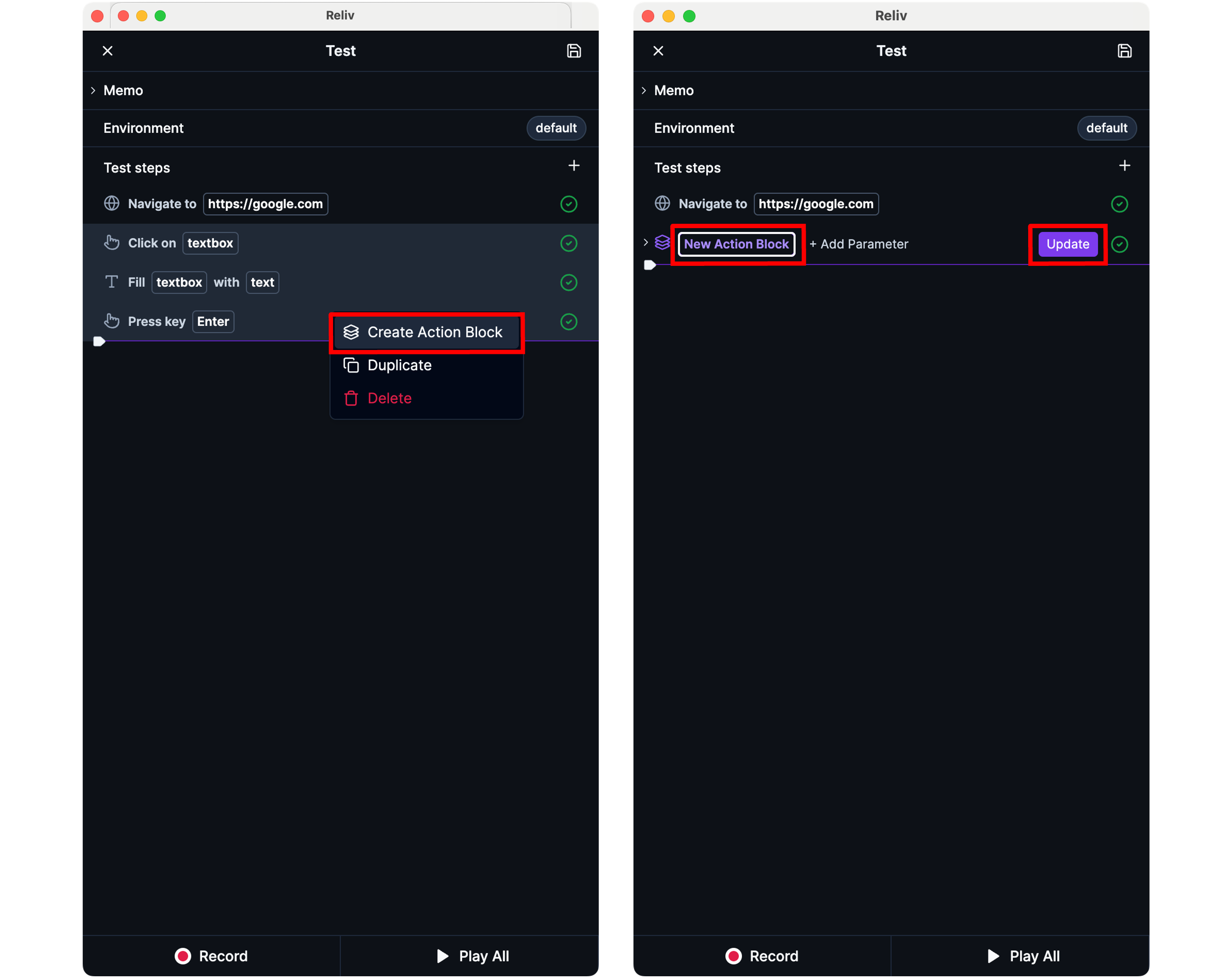
Select the range of actions you want to group into an action block by pressing the `Shift` key.
Right-click on the action range and click **\[Create Action Block]** to create an action block.
Set a name for the action block.
After modifying the name of the action block or the actions within it,
click the **\[Update]** button to apply the changes to other tests.
 ## 2. Using Action Blocks
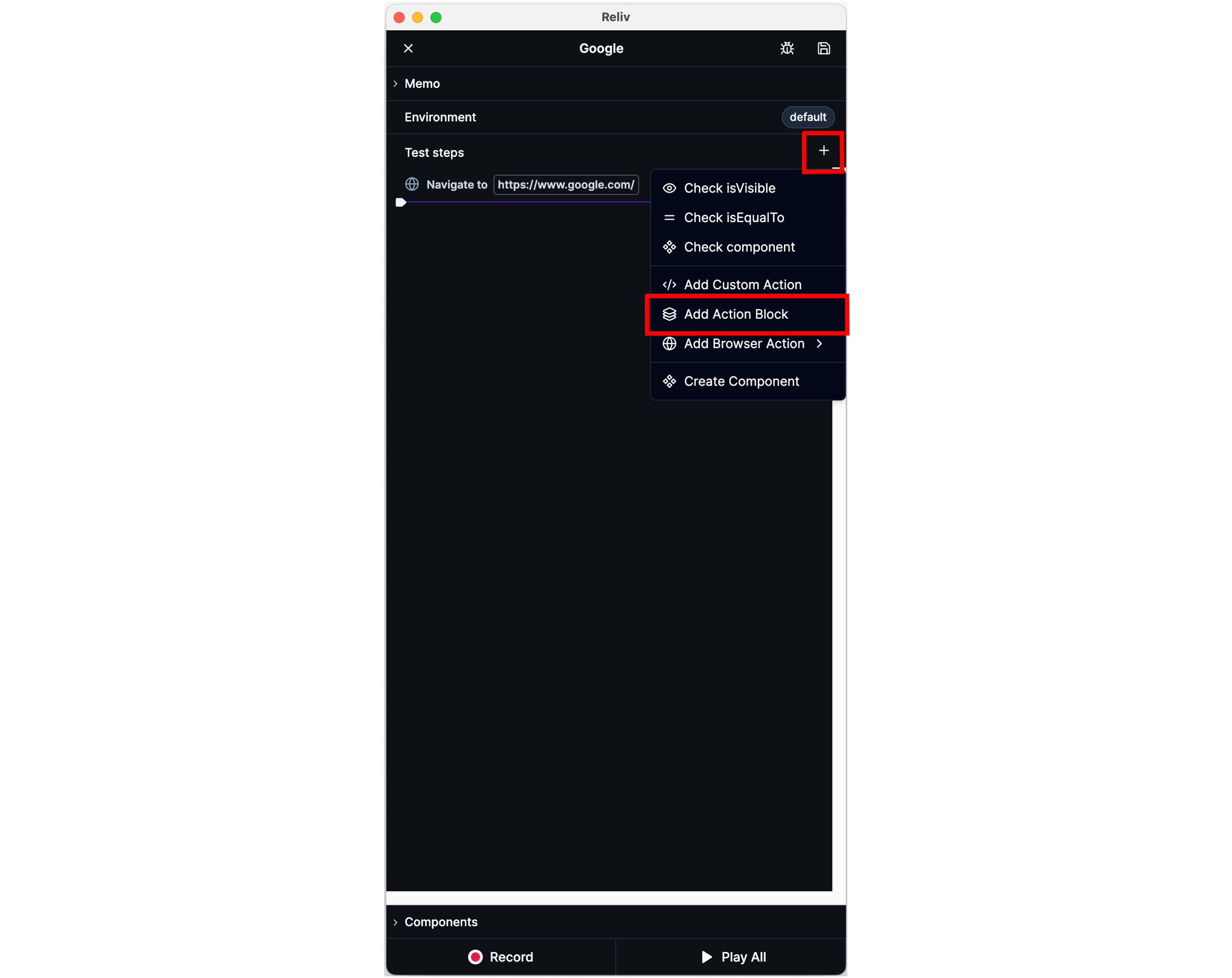
You can add an action block by clicking the **\[+] button > \[Add Action Block]** button at the top right of the **\[Test Steps]** panel in the Reliv Editor.
## 2. Using Action Blocks
You can add an action block by clicking the **\[+] button > \[Add Action Block]** button at the top right of the **\[Test Steps]** panel in the Reliv Editor.
 ## 3. Action Block Parameters
You can define parameters to manage values that need to change depending on usage context.
This is similar to using [variables](/guide/write/variable) within an action block,
but by using parameters, you can receive variable values from outside the action block and use them.
### 3-1. Creating Action Block Parameters
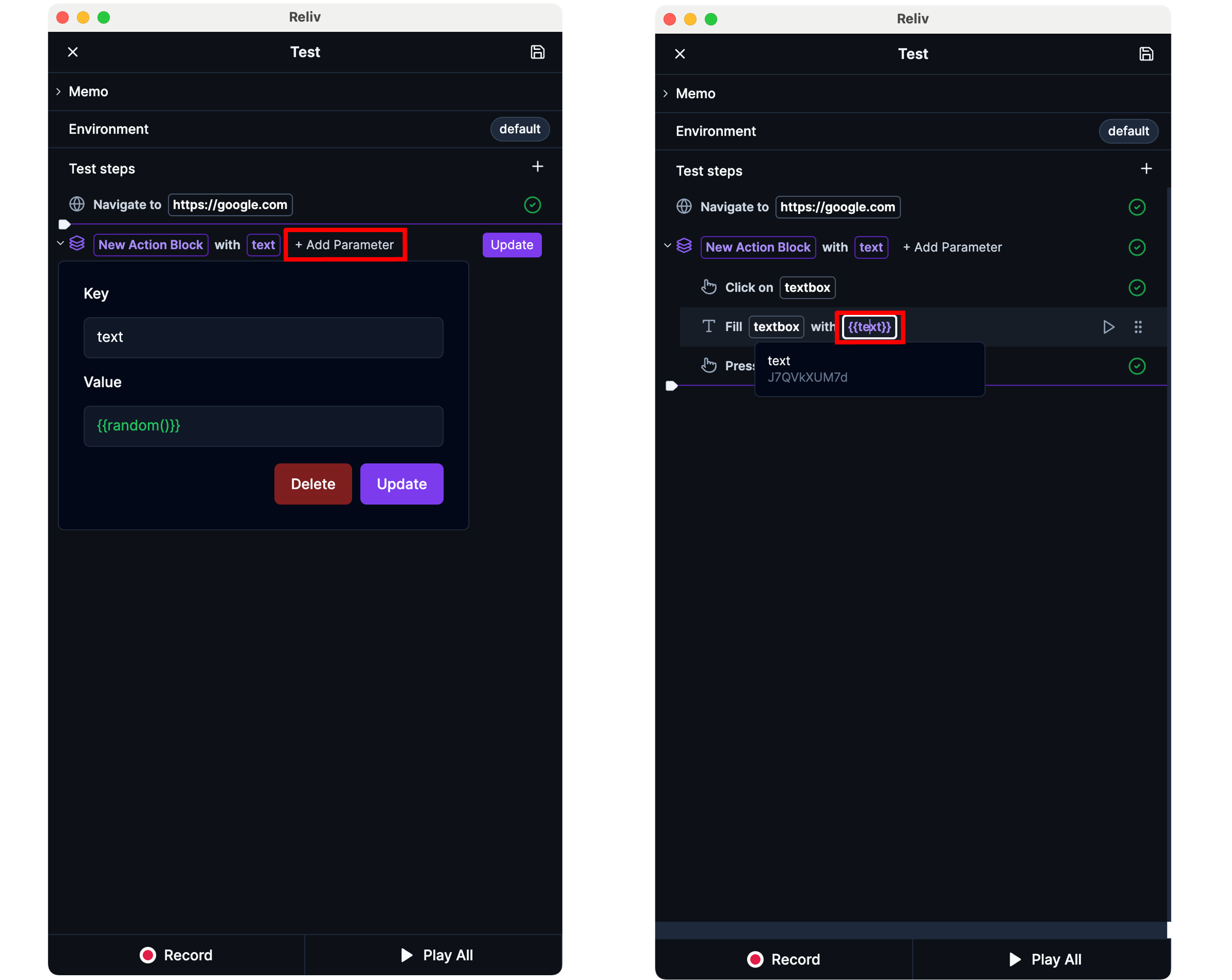
You can add a parameter by clicking the **\[+ Add Parameter]** button at the top of the action block.
The `Key` of the parameter corresponds to the name of the variable, and the `Value` corresponds to the value of the variable.
The method for setting the value of a parameter is the same as [creating a variable](/guide/write/variable#1).
You can use variables from the parent level of the action block in the
parameter values.
### 3-2. Using Action Block Parameters
When you type `{` (curly braces) in a text input field, a list of parameters/variables/environment variables/functions will appear.
You can click to insert a parameter.
## 3. Action Block Parameters
You can define parameters to manage values that need to change depending on usage context.
This is similar to using [variables](/guide/write/variable) within an action block,
but by using parameters, you can receive variable values from outside the action block and use them.
### 3-1. Creating Action Block Parameters
You can add a parameter by clicking the **\[+ Add Parameter]** button at the top of the action block.
The `Key` of the parameter corresponds to the name of the variable, and the `Value` corresponds to the value of the variable.
The method for setting the value of a parameter is the same as [creating a variable](/guide/write/variable#1).
You can use variables from the parent level of the action block in the
parameter values.
### 3-2. Using Action Block Parameters
When you type `{` (curly braces) in a text input field, a list of parameters/variables/environment variables/functions will appear.
You can click to insert a parameter.